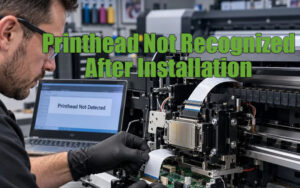
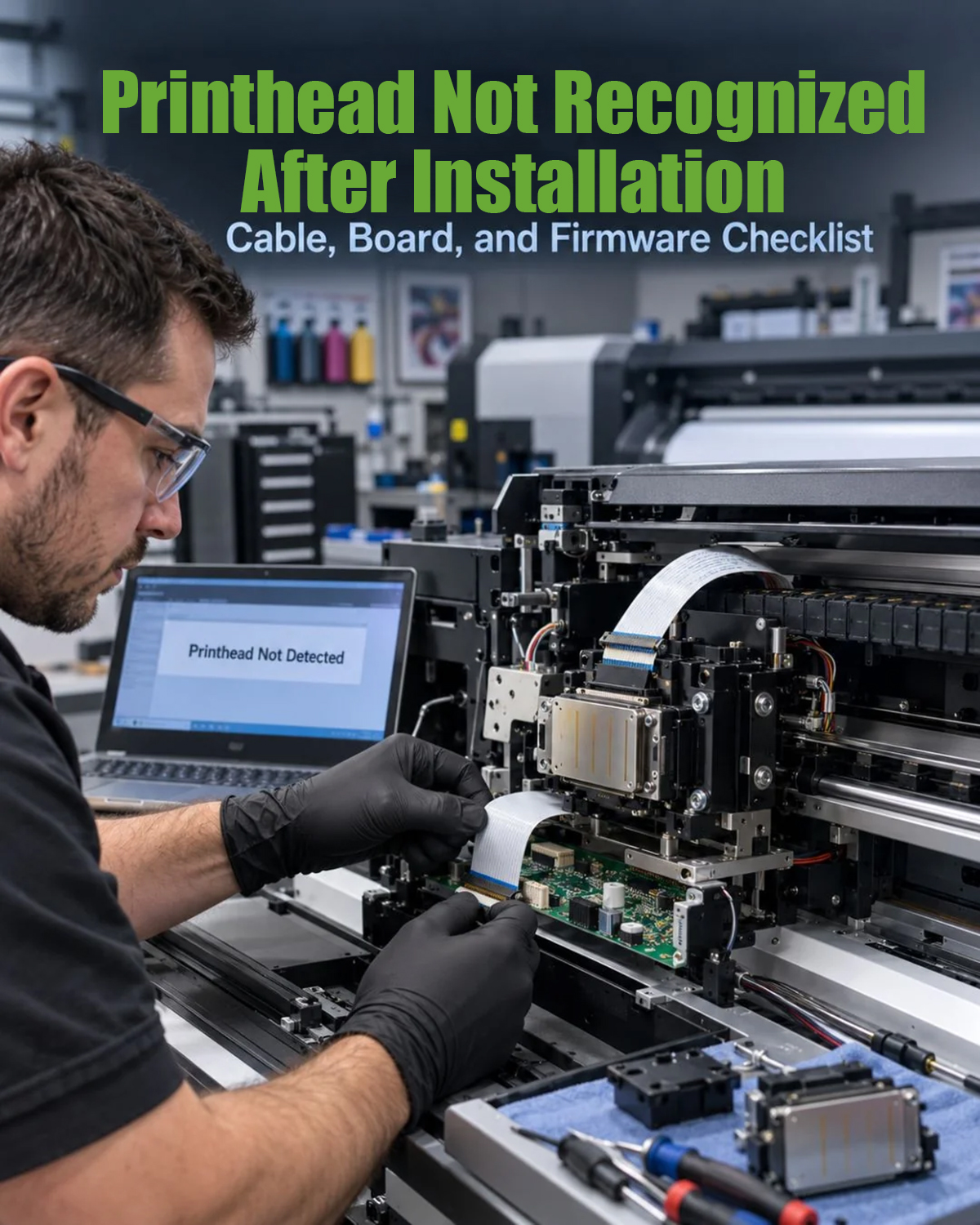
A printhead not recognized after installation error can occur even when a replacement printhead is functional. Incorrect cable connections, incompatible printhead variants, faulty carriage boards, or incorrect software settings may prevent the printer from detecting the new component. Following a systematic troubleshooting process can help identify the cause before you purchase another printhead.
1. Power Off and Check the Installation
Before inspecting any connections, switch off the printer and disconnect power according to the manufacturer’s service instructions. Allow the machine to discharge as specified before handling printhead cables or electronic components.
Connecting or disconnecting a printhead while the printer is powered can cause electrical damage to the printhead or control board.
Check that the printhead is installed in the correct position and securely seated according to the model-specific procedure.
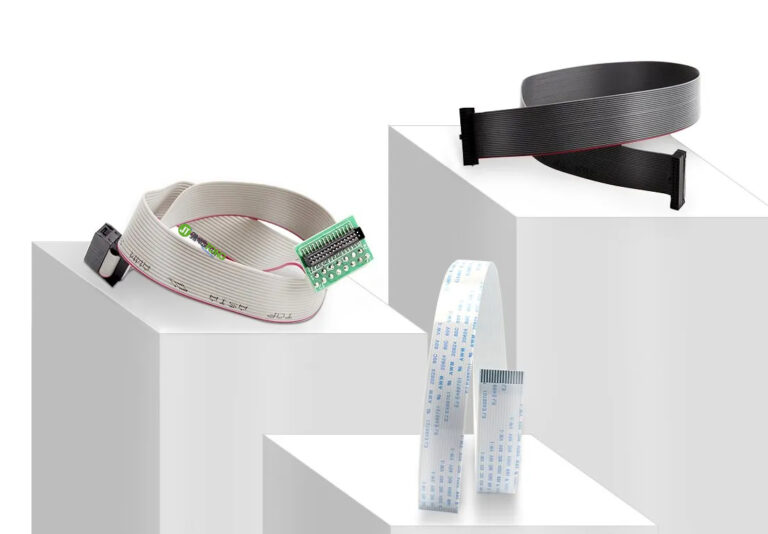
2. Inspect the Printhead Data Cable
A damaged or incorrectly installed data cable is one possible cause of a printhead detection error.
Check the following:
● Cable condition: Look for creases, cracks, damaged contacts, or signs of corrosion.
● Cable orientation: Confirm that the contact side and stiffener face the correct direction at both ends.
● Connector seating: Make sure the cable is fully inserted and the locking mechanism is secured.
● Cable compatibility: Verify the cable’s pin count, dimensions, and part specification for the particular printhead and control board.
A cable can appear intact while having an internal break. If the cable is suspect, test with a known-good compatible cable rather than repeatedly reconnecting it.
3. Confirm Printhead Model and Variant Compatibility
Some printhead families have variants that are not interchangeable in every printer configuration. For example, different variants in an industrial printhead series may require different board settings, wiring, or firmware support.
Before installation, verify:
● The complete model number and suffix on the printhead label
● Compatibility with the printer and carriage board
● Any required head ID, rank, or calibration data
● Whether the printer supports the specific replacement part
Do not assume that printheads sharing the same product family name can be used interchangeably.
4. Check the Printhead or Carriage Board
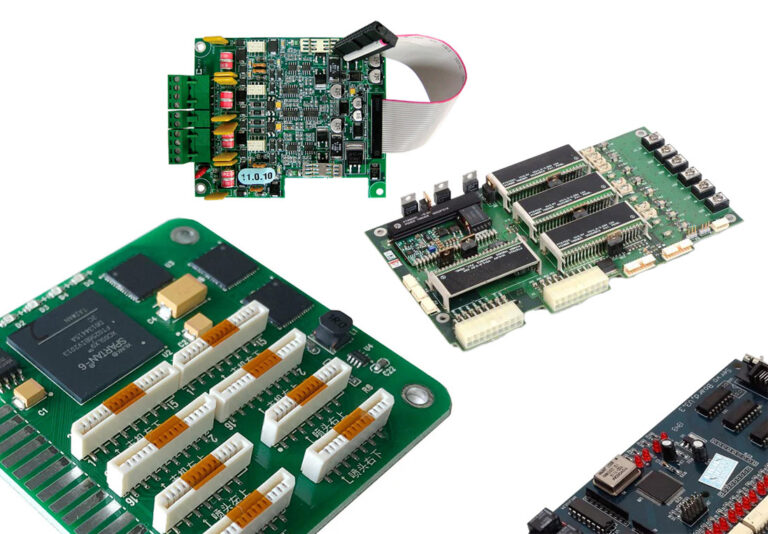
If the cable and printhead compatibility have been confirmed, the control electronics may require inspection.
Possible warning signs include a detection failure that began suddenly, visible damage to a board, or a burnt smell near the carriage. These symptoms do not prove that the board has failed, but they justify stopping further power-on tests.
A qualified technician can inspect the board and test it using approved procedures. Avoid swapping boards or printheads without confirming compatibility, because a faulty circuit may damage a known-good replacement component.
5. Verify Firmware and Printer Software
The printer’s software may also affect printhead recognition.
Check whether:
● The correct printer model or configuration profile is selected.
● The printer software or RIP has been restarted after installation.
● The required printhead ID or rank data has been entered.
● A dual-head printer has the replacement head installed in the expected position.
● Firmware and control-board settings match the installed hardware.
Only change configuration parameters using instructions intended for the specific printer and board.
6. Determine Whether the Printhead Is Faulty
Consider the printhead itself only after checking the installation, cable, compatibility, electronics, and software.
If possible, have a qualified technician test the printer with a known-good, compatible printhead. If the known-good head is recognized but the replacement is not, the replacement may be defective or incorrectly configured.
Record the error message, printhead model, cable details, and steps already taken. These details help the supplier or technician evaluate the issue more efficiently.
7. Prevent Detection Problems During Future Replacements
To reduce installation-related risks:
● Confirm printhead and cable compatibility before ordering.
● Photograph cable orientation before removing the old printhead.
● Replace damaged cables rather than reusing them automatically.
● Follow the manufacturer’s power-off and installation procedures.
● Keep the original packaging and record the replacement model and identification data.
● Inspect related connectors and boards before installing another head if the previous failure involved electrical damage.
Conclusion
A printhead not recognized after installation does not automatically mean the new printhead is defective. Check the data cable, connector orientation, printhead variant, control board, and software settings in a logical order. Correct diagnosis can prevent unnecessary replacement costs and help protect the printer’s electronic components.